Your web-browser is very outdated, and as such, this website may not display properly. Please consider upgrading to a modern, faster and more secure browser. Click here to do so.

Maurício Gardini
About • RSS • Contact
27 Feb '13

Using IFTTT to fix the missing pipes on your internet experience

Too Many Tabs!

I’m an avid user of Google Reader, at least for my standards: I’m signed up to a bunch of feeds, look over hundreds of items, read dozens of articles. It really is a great tool (Actually, any RSS feed reader would do, but Google Reader is the best one for me) and the daily use of it pretty much suffices my need of fresh information and news.

But with Google Reader’s information abundance came another problem: tab management. It wasn’t unusual for me that, when I read my feeds, in a matter of minutes I’d end up having 10, 20 tabs open. Not a great thing for memory management, neither for user experience (Try opening 20 tabs in a 13” screen and see if you can distinguish what is in each tab).

image
And this used to be the result of a RSS reading session. Or worse.

I looked for alternatives to try to make things work better:

  • Using other browsers: I tried Safari and Chrome, but the good and old Firefox is still my favorite (and current) browser. Hell, I even tried compiling Waterfox - a high performance browser based on Mozilla Firefox - for Mac OS, but I failed on that task;
  • Installing extensions to improve the tab management: Tab Mix Plus helped quite a lot here, allowing me to stack rows of tabs instead of a unique row and for improving foreground link opening;
  • Configurations on the browser’s config to improve memory management and other things.

Some of the solutions quoted above helped more than the others, but none of them was a definitive keeper. But then a thought came to my mind: maybe the problem isn’t the browser. Maybe the problem is… me. Me and my tab management failure. And that’s when I started to think differently and then IFTTT came to my mind.

IFTTT - Put the internet to work for you

IFTTT (Stands for “IF This Then That”) is a service that enables you to connect channels. Sounds weird, but this idea solves many of the problems that a more demanding internet user may find throughout his day-to-day browsing.

This service works using the formula (Or, as they call, “recipe”) “if this then that”, being “this” the trigger that will provoke the “that”, the action by itself. Also, there are the ingredients, which are the pieces of data used/transmitted by the action.

Still hard to understand? Let me narrow it down to an example:

image
Just a simple example.

Pretty self explanatory now, huh? Then, every time I upload a new photo to Facebook, a copy of it will be uploaded to Dropbox (More specifically to the path “Facebook/Personal”). Simple, isn’t it?

Among the available channels to fiddle with, I can cite Delicious, Evernote, Flickr, Foursquare, Gmail, Google Calendar, Last.fm, Tumblr, Twitter… The list is long and continually grows.

My new RSS reading’s modus operandi

Now, to explain how IFTTT helped with my personal problem, I’ll have to introduce you to three other services:

  • Pocket, a read it later service: It gets your links and store them for you to read later, pretty simple. It also has a Firefox extension, which I use;
  • Pinboard, a bookmarking site: It stores the links that you may find useful for future use;
  • Readability, a service for decluttering webpages on behalf of a better reading experience (I know that Pocket has this feature, but I like to keep each thing on its place).

Having that said, let me dive into how I read my feeds: when browsing through my feeds on Google Reader, if I find something that I want to read, instead of opening it in a new tab, I just click on the nifty Pocket icon that is present on each Reader’s item (Thanks to the Firefox extension).

image
Adding items to Pocket with its Firefox extension is really easy.

This action automatically adds the item to Pocket and, then, I can keep on browsing through the remaining feeds ‘till there’s none left. And no, I usually don’t read any article directly on Google Reader, unless it is a short one or if I want to read it really badly.

image
Pocket: visually pleasant and very practical.

With all the items I want to read in Pocket, I dive into the reading process by itself. From here, the items can be included into three recipes:

image
The recipes I’m using at the moment.

Explaining: if I want to bookmark it, I just mark it as favorite and it is automatically added to Pinboard as a private bookmark; if I want to share it with my friends, I just tag it with a custom tag and it is automatically added to Pinboard as a public bookmark with the custom tag; if the article is too big to read at the moment or it treats about a subject that I don’t want to read just now, I just tag it with the tag “read-it-later” and it is automatically added to Readability; and, if it doesn’t apply to any of the previous cases, I just read it and delete it.

By using this modus operandi, I solved the tab management problem by its root and, at the same time, organized the links that I stumble upon in a more intelligent way.

But, of course, you can do plenty more….

IFTTT is now an essential service for me. I’d happily pay for it if I had to, ‘cause the array of things that can be done with it are almost endless.

Maybe my use case isn’t the best one to showcase all the power that IFTTT provides to the user, but you can check by yourself all that this service has to offer: just go to the browse section of their site and check out all the interesting ideas of things to be done. Maybe you’ll find there the solution to a problem that you have, but you hadn’t noticed yet. Here are some examples of other interesting applications of IFTTT:

  • Save starred items from Google Reader to Pocket (I could use this one as an alternative to Pocket’s extension);
  • Send a SMS about the weather every morning;
  • Save a video marked as Watch Later on Youtube to Pocket;
  • And many, many others.

Hopefully, IFTTT will be useful for many of you ‘cause, as I said, it allows many, many possibilities. Then, if you discovered an interesting recipe or if you already use IFTTT and would like to share something you use quite often, be my guest!

1 note
View comments ifttt google reader pinboard pocket readability
Comments

17 Feb '13

Slate: a Mac OS X window manager for power users

Linux: always triggering my curiosity

Well, as I already stated, even though I’m quite a newbie when it comes to Linux, it doesn’t mean that I’m not curious about some products developed for it. And one that I’ve been curious since the moment that I first read about was XMONAD.

XMONAD is a keyboard-based automated window manager developed in Haskell. It basically places the windows that you open in a tiled environment, exempting you (Entirely or mostly, depends on how picky and demanding you are) from the task of resizing and organizing them. Also, you keep its configurations in a config file, just like bashrc or vimrc, which is always good. Well, when you see it in action, you’ll agree on how awesome this thing is.

So. Fast.

Nevertheless, I’m a Mac OS user, and using XMONAD on it is not as seamless and practical as it is on Linux. So, of course I had to find something equivalent. Enter Slate.

Slate: my new window manager

Slate is a Mac OS X window manager made for those who are tired of fiddling around with the mouse when it comes to resizing, focusing and arranging programs. With Slate, all comes down to the keyboard: just customize the dotfile with the hotkeys of your liking and you are good to go. If you are a software developer, you know how important it is to maximize the time you spend on the keyboard (Even more if you use vim or emacs), and that’s one of the main reasons for me to adopt it.

Basically, Slate allows you to perform the following actions through keyboard hotkeys:

  • Move and/or resize windows;
  • Directionally focus windows;
  • Activate preset layouts;
  • Create, delete, and activate snapshots of the current state of windows
image
An example on how my windows are arranged usually.

Configuring Slate’s dotfile: the basics

As I stated before, Slate is configured through a dotfile called .slate that is placed in the home directory. And, to make it even more clear how Slate is configured, I’ll strip down my .slate as we dive into each concept (or, if you want to check it out by yourself, just check it at Github).

Slate’s readme says that you can configure it using the following directives:

  • config- For global configurations.
  • alias- To create alias variables.
  • layout- To configure layouts. Even though I don’t use layouts yet, I’ll put an example on how to configure it.
  • default- To default certain layouts or snapshots to certain screen configurations.
  • bind- For key bindings. It’s the one I use most. I’ll narrow down to the location bindings along with an example of each of the main cases I use.
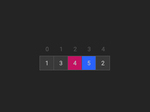
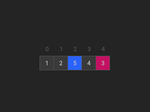
    image
    How my location hotkeys could be pictured.
  • source- To load configurations from another file.

And there’s more…

There are even more things that Slate allows you to do. For example, I only mentioned about snapshots, that allows you to save your current window layout and restore it whenever you want. There’s also the possibility of Slate being more “GUI-friendly”, as there are configurations for showing icon overlays to help focus changing or grids for visual aid when resizing windows.

So, if you’re on a Mac and feel adventurous, have a try. I used to use Moom to place and resize my windows, but Slate does the job much more seamlessly, and it’s a keeper for me.

24 notes
View comments mac os x slate window manager xmonad linux
Comments

13 Feb '13

Hello World!

Well, I’m Maurício Gardini, and this is my website.

In my inaugural post, I was planning to talk about myself. But the draft of this post was becoming kinda… huge. So, I’ll leave my “bio things” at the About section and narrow this post to things related to what I’ll write about in this blog.

It’s kind of a big thing to me to finally turn this idea into reality, ‘cause this website was something that I wanted to accomplish for quite a long time.

I live by a motto (A motto of my own, as far as I know): “Stay curious”. And, while this is a good thing generally speaking, it can be kinda troublesome because I have many interests, but little free time allied with a huge time management problem. And that’s why this site’s launch got delayed… And delayed… And delayed.

Anyway: in this site, I’ll talk mainly about the things that I experience, use and discover. Yeah, it’s going to be more like a technical site than a blog, but I’m not intending to be very formal either.

So, yeah. Stay tuned for the upcoming updates. =)

View comments hello world
Comments

© 2013 Maurício Gardini.
"1000 Suns" Theme v1.92.7 by Sujay
Customized by Maurício Gardini.
Powered by Tumblr.